# Using System.Web Adapters with VB.NET
> If you have to migrate from .NET Framework to .NET Core, SystemWebAdapters can help with the load. They work with VB.NET and C#.
- URL: https://blog.nimblepros.com/blogs/system-web-adapters-with-vb-net/
- Author: [Sarah Dutkiewicz](https://blog.nimblepros.com/authors/sadukie/)
- Published: 2023-07-10
- Categories: [Software Development](https://blog.nimblepros.com/categories/software-development/)
- Publisher: [NimblePros](https://blog.nimblepros.com/)
---
We help some of our clients with migrating from .NET Framework to .NET Core apps. The [.NET Upgrade Assistant](https://dotnet.microsoft.com/platform/upgrade-assistant) can assist in the transition. One of the approaches we take is an [incremental approach](https://learn.microsoft.com/aspnet/core/migration/inc/overview?view=aspnetcore-7.0) with [the Strangler Fig pattern](https://deviq.com/design-patterns/strangler-fig-pattern).
While going through documents on the incremental approach, you will see that they recommend using two tools:
- [YARP](https://microsoft.github.io/reverse-proxy/index.html) - a reverse proxy tool
- [System.Web Adapters](https://github.com/dotnet/systemweb-adapters) - a collection of adapters to help with migrating from System.Web
We have been trying to use System.Web Adapters to share session information between VB.NET WebForms and .NET Core. Specifically, we are looking into reading the WebForms session information in our .NET Core app. We have run into a bunch of things that are in undocumented territory. So we figured we would share those findings here.
## Setup
[Our solution](https://github.com/NimblePros/systemwebadapters-vb-net-demo) has 2 projects:
- VB.NET WebForms application - standard VB.NET WebForms template
- C# Razor application - standard C# Razor template
We are using YARP in the Razor application. It is set with the catch-all that if the Razor app doesn't have the URL, it will fall back to the WebForms application. You can see this configuration in [the appsettings.json in the .NET Core project](https://github.com/NimblePros/systemwebadapters-vb-net-demo/blob/main/DotNetCoreRazor/appsettings.json).
We are taking the [Remote app session state](https://learn.microsoft.com/aspnet/core/migration/inc/remote-session?view=aspnetcore-7.0) approach to the incremental migration.
When using System.Web Adapters, we've taken the approach they recommend with the strongly-typed shared session variables. We are using these session variables:
- "UserName" of type `string`
- "CurrentTime" of type `DateTime`
The VB.NET WebForms app will be the one hosting the session server used with System.Web Adapters.
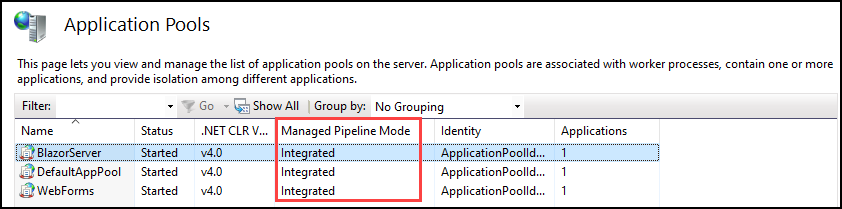
> **Note**: While this post doesn't get into deploying to IIS, it is important to note that you may need to make sure both sites' application pools are running with Integrated Managed Pipeline Mode, not Classic.
>
> 
## VB.NET Guidance for System.Web Adapters
We have yet to encounter any documentation on moving from a VB.NET WebForms app to a C# .NET Core app using System.Web Adapters. So we have had to do a lot of translating between the languages.
One of the first things they have you do as part of an incremental migration is the [remote app setup](https://learn.microsoft.com/aspnet/core/migration/inc/remote-app-setup?view=aspnetcore-7.0). This documentation is all in C#. Here's what you need to know if you're using VB.NET.
If you have a VB.NET WebForms application that you are trying to migrate to .NET Core and want to use System.Web Adapters, you can! You will need to do the following:
1. Add NuGet references to [Microsoft.AspNetCore.SystemWebAdapters](https://www.nuget.org/packages/Microsoft.AspNetCore.SystemWebAdapters), [Microsoft.AspNetCore.SystemWebAdapters.Abstractions](https://www.nuget.org/packages/Microsoft.AspNetCore.SystemWebAdapters.Abstractions), and [Microsoft.AspNetCore.SystemWebadapters.FrameworkServices](https://www.nuget.org/packages/Microsoft.AspNetCore.SystemWebAdapters.FrameworkServices).
2. In **Global.asax.vb**, add the following block of code to the end of your `Application_Start` subroutine:
```vbnet
With SystemWebAdapterConfiguration.AddSystemWebAdapters(Me)
.AddJsonSessionSerializer(Sub(options)
options.RegisterKey(Of String)("UserName")
options.RegisterKey(Of DateTime)("CurrentTime")
End Sub)
.AddRemoteAppServer(Function(options)
options.ApiKey = ConfigurationManager.AppSettings("SessionServerApiKey")
End Function).AddSessionServer()
End With
```
> **Note**: Do not move the `AddSessionServer()` to a new line. It needs to chain off of `AddRemoteAppServer()`.
3. In **web.config**, there are 2 changes that need to be checked:
- Add an App Setting value named `SessionServerApiKey` with a random GUID for the key. It will look something like this:
```xml
```
- Make sure there is an entry for the `SystemWebAdapterModule` in **system.webServer/modules**. It should look like this:
```xml
```
Follow [Microsoft's guidance for the ASP.NET Core app setup](https://learn.microsoft.com/aspnet/core/migration/inc/remote-app-setup?view=aspnetcore-7.0#aspnet-core-app). Remember to set the Remote App Client's ApiKey to match whatever you used for the `AddRemoteAppServer()` call in the VB.NET WebForms app.
## Links in the Demo App
In this demo app, we have the following pages linked in the navigation:
- Inspect Session (WebForms) - This link will fail in the .NET Core routing and will be picked up by WebForms via the YARP routing. If you are running the .NET Core application on its own, this will fail.
- Inspect Session (.NET Core) - This is the standard .NET Core session. When accessed via the .NET Core URL, it will get picked up properly. If you are running the WebForms application on its own, this will fail.
- Inspect Session (Adapter) - This is the shared WebForms session using System.Web Adapters. It is hosted as an endpoint in .NET Core.
## Run the App
To run this app, you need:
- [.NET 7](https://dotnet.microsoft.com/en-us/download/dotnet/7.0) for the .NET Core app
- [.NET 4.7.2](https://dotnet.microsoft.com/en-us/download/dotnet-framework/net472) for the WebForms app
1. Download or clone [our sample repo](https://github.com/NimblePros/systemwebadapters-vb-net-demo).
2. Open the solution file in Visual Studio. (We have created this using Visual Studio 2022.)
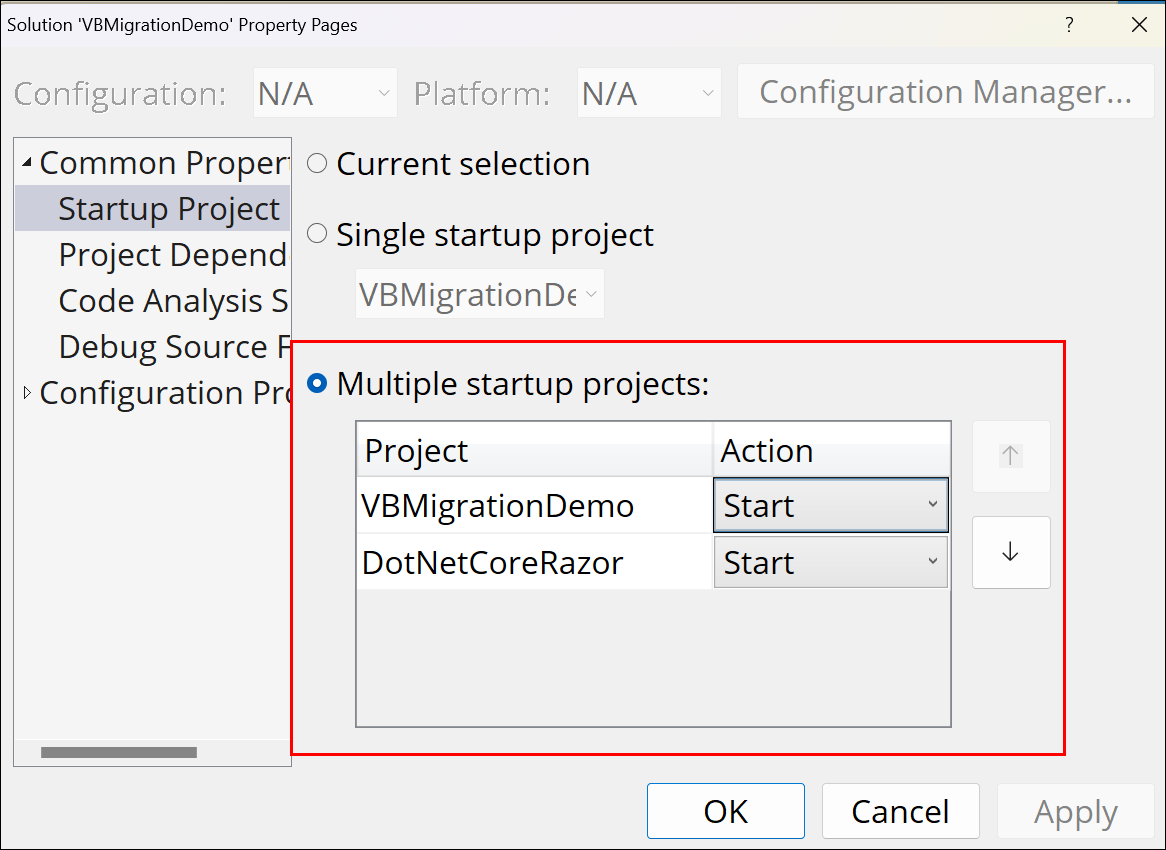
3. Set both projects as Startup Projects. Right-click on the solution, then select **Configure Startup Projects...**. Select **Start** for both of the projects. Then select **OK**.
4. When the .NET Core App loads, select the link for **Inspect Session (WebForms)**. This takes you to the session management page (`InspectSessionWebForms`) in the WebForms project.

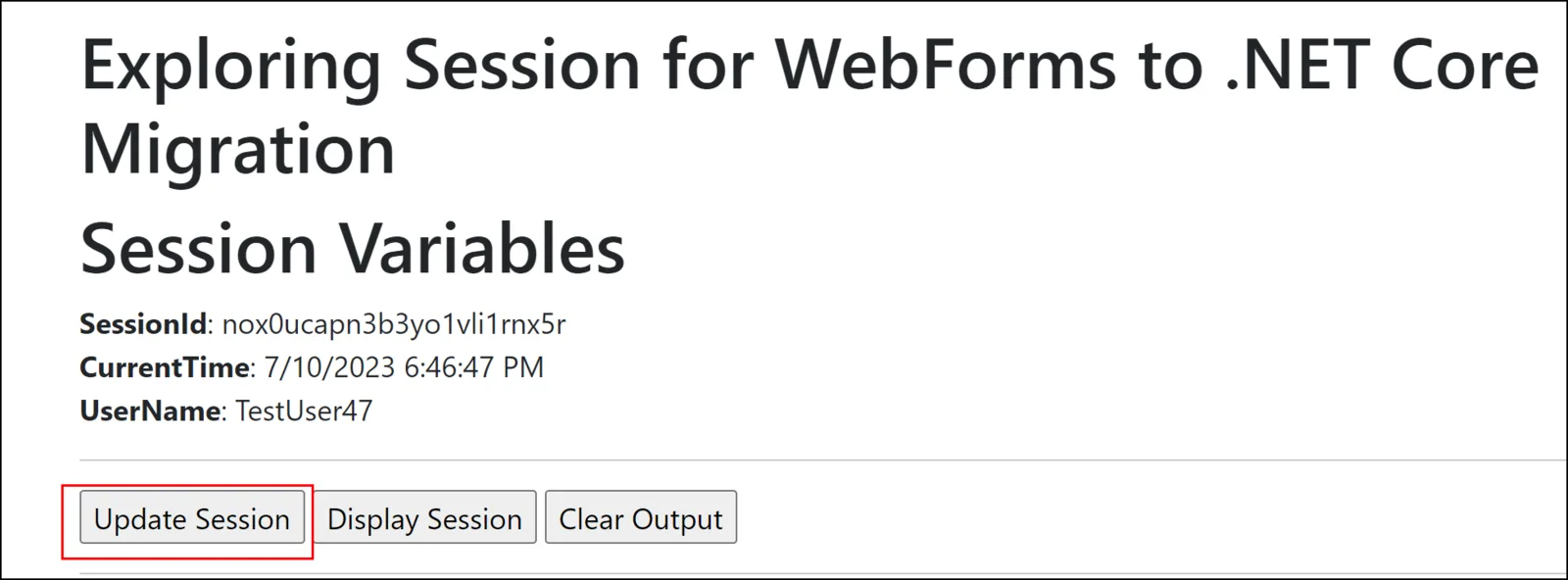
5. Notice that this is showing a **SessionId** and no variables. Select the **Update Session** button to generate some values. When you select that button, it will add some values to session variables `CurrentTime` and `UserName`. It will look something like this:
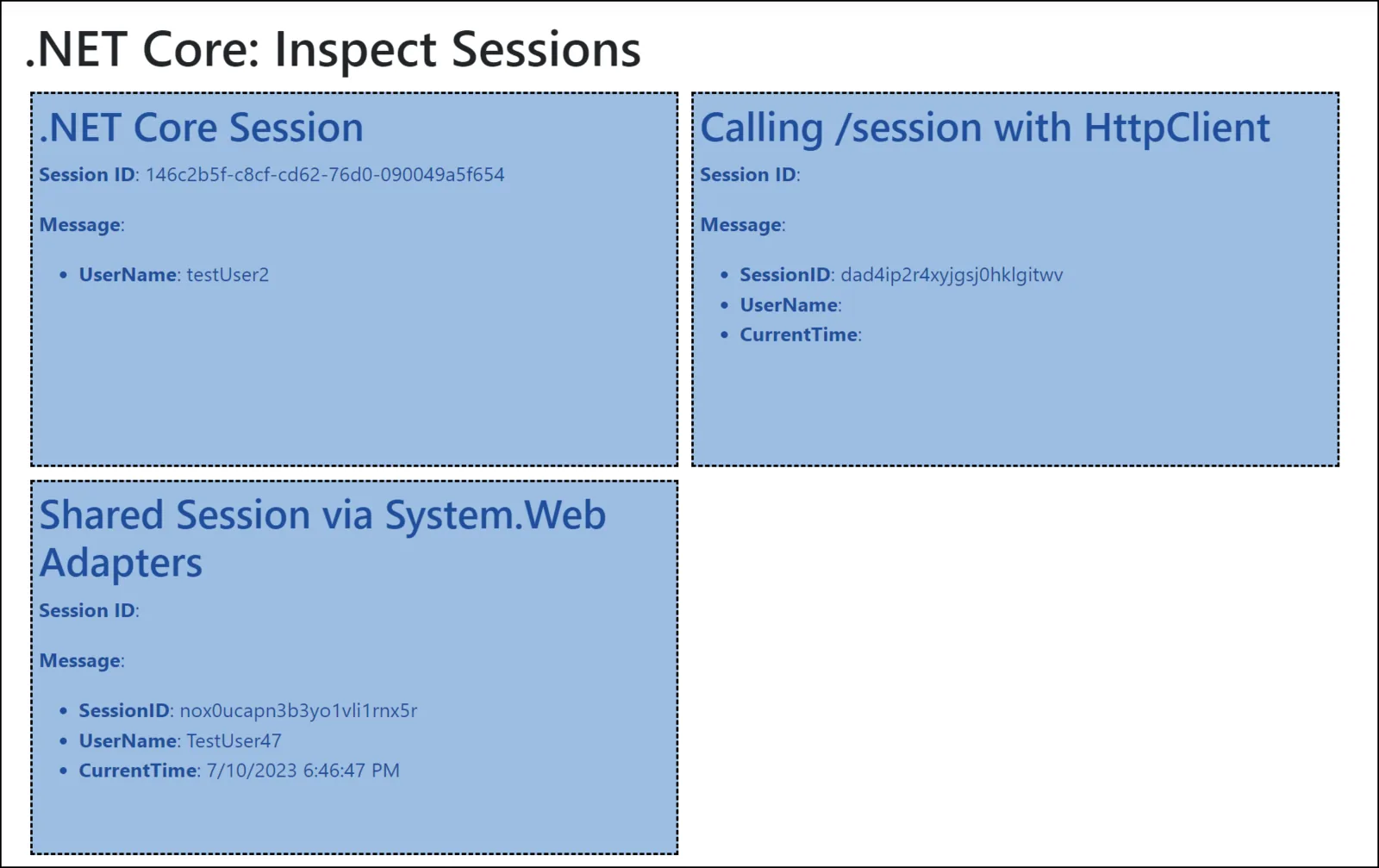
6. From the WebForms navigation, select **Inspect Session (.NET Core)**.This will take you to the session inspection page (`InspectSessionCore`) in the .NET Core app.
Let's look at this application further.
### .NET Core Session
The .NET Core Session is looking specifically at the session in the `Microsoft.AspNetCore.Mvc.RazorPages.HttpContext`. This will iterate through any variables in the session and show their keys and string values. When this page is loaded, it will update the `UserName` variable with a different name.
### Shared Session via System.Web Adapters
This is the whole reason why I was exploring this in the first place. I wanted to be able to read values from the WebForms' session. System.Web Adapters allows for that to happen. How did I make it happen?
- There is a static class named [SharedSession](https://github.com/NimblePros/systemwebadapters-vb-net-demo/blob/main/DotNetCoreRazor/SharedSession.cs). The `GetSharedSessionObject` static method is annotated with a `Session` annotation from SystemWebAdapters, which ensures we're using the session from the session server. **This annotation is important in order to ensure you are using the session from SystemWebAdapters.** The documentation and videos linked at the end of this article include other ways to ensure this happens.
- We pass the current context over to this static method using the HttpContext, following the guidance on [Access `HttpContext` from Razor Pages](https://learn.microsoft.com/aspnet/core/fundamentals/http-context?view=aspnetcore-7.0#access-httpcontext-from-razor-pages).
You can tell this is the WebForms session being accessed in .NET Core based on the SessionID. The session ID for Step 5 above was from WebForms. The session ID for Step 6 above in the "Shared Session" section matches the Session ID in Step 5.
### Calling /session with HttpClient
In this video [Deep Dive into System.Web.Adapters [18 of 18] Migrating from ASP.NET to ASP.NET Core](https://www.youtube.com/watch?v=zXoGXbB3JDI), Taylor creates an example where he maps a `/session` endpoint to return a string with some of the shared session values. I used that as [a starting point](https://github.com/NimblePros/systemwebadapters-vb-net-demo/blob/623c5e0daf28dcfffaa6304d773a36970c60c950/DotNetCoreRazor/Program.cs#L40). Initially, I had this returning a string. But then I wanted to work with it a bit more, so I used the static method for the SharedSession in that map.
**You need to make sure to include `.RequireSystemWebAdapterSession()` off of the `Map` route so that it ensures that the session is being used from SystemWebAdapters**.
To see what this endpoint returns, in the navigation of the .NET Core App,
select the link for **Inspect Session (Adapter)**.

If you open this in the same browser where you were looking at the .NET Core session, you'll notice that the `/session` endpoint serves up the shared session. However, what if you tried accessing that endpoint with an `HttpClient`?
Notice in the screenshot for Step 6 that the Session ID is different for this endpoint. Keep in mind that a new HttpClient would have a different session than your own current session. That's the nature of sessions.
## Conclusion
In this example, we walked you through configuring a VB.NET WebForms application and .NET Razor application so that you can use YARP as the reverse proxy and use System.Web Adapters to read the WebForms session in .NET Core.
## Additional Resources
These are some resources that helped me get through System.Web Adapters and understanding how they work:
- [Using System.Web Adapters to Share Session State in ASP.NET Upgrade Scenarios [11 of 18] Migrating from ASP.NET to ASP.NET Core (dotnet on YouTube)](https://www.youtube.com/watch?v=_XG3EYRcgY8)
- [Deep Dive into System.Web.Adapters [18 of 18] Migrating from ASP.NET to ASP.NET Core (dotnet on YouTube)](https://www.youtube.com/watch?v=zXoGXbB3JDI)
- [System.Web adapters (Microsoft docs)](https://learn.microsoft.com/aspnet/core/migration/inc/adapters?view=aspnetcore-7.0)
- [Remote App Session State (Microsoft docs)](https://learn.microsoft.com/aspnet/core/migration/inc/remote-session?view=aspnetcore-7.0)