# Fix Missing Default NuGet Feed
> Getting NU1101 package restore errors on a fresh install of Visual Studio? The default nuget.org feed may be missing. Here's how to add it back.
- URL: https://blog.nimblepros.com/blogs/fix-missing-default-nuget-feed/
- Author: [Kyle McMaster](https://blog.nimblepros.com/authors/kyle/)
- Published: 2022-07-13
- Updated: 2026-11-06
- Categories: [Software Development](https://blog.nimblepros.com/categories/software-development/)
- Publisher: [NimblePros](https://blog.nimblepros.com/)
---
I was recently going through the process of installing the developer tooling I use on a fresh, new laptop. I installed the usual suspects like Visual Studio and Visual Studio Code as well as a few other tools I use often most of which can be found [here](https://ardalis.com/tools-used/). Once I was finished with installation, I launched Visual Studio and created a new ASP.NET Core Web API project. When attempting to build the solution I received the following NU1101 error for all of the package references telling me that the package restore had failed.
```text
NU1101 Unable to find package Swashbuckle.AspNetCore. No packages exist with this id in source(s): Microsoft Visual Studio Offline Packages
```
I opened the NuGet package manager and noticed Visual Studio only had only installed the Microsoft Visual Studio Offline Packages feed. I was missing the [default Nuget.org feed](https://api.nuget.org/v3/index.json).
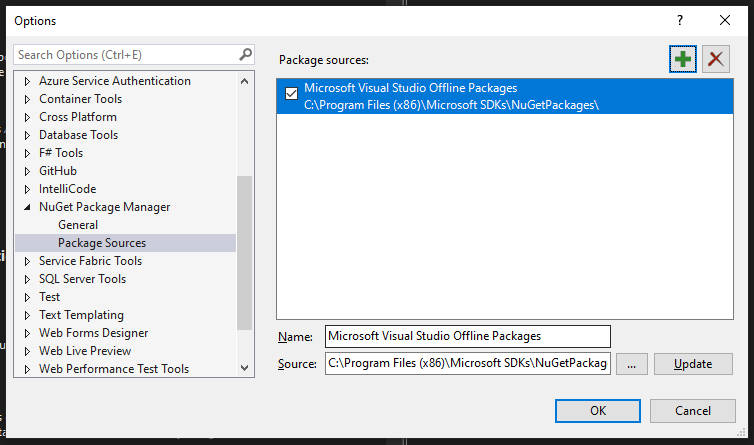
## How to fix the issue
There are three configuration files that can be used to manage the NuGet feeds available to Visual Studio. The first being a configuration file local to the application's project and solution, a user-specific configuration file for all of a user's projects, or a system-wide configuration affecting all users on the machine. These individual configurations have a hierarchy where project-specific feeds override a user's configuration and user-configured feeds override any system-wide configurations. Since I needed to fix the issue for all projects I would be working with and I am the only user that will be working on this machine, I opted for modifying my user's configuration. This is also the default file that is modified when working with the CLI tools and can be found at `%appdata%\NuGet\NuGet.Config` on Windows. When I first opened this file it had the following contents:
```xml
```
As you can see, there is not much going on here. I needed to add the default feed to the packageSources section. The updated configuration is shown below.
```xml
```
After modifying the file, I restarted Visual Studio and built the solution. It worked! I am now able to use the NuGet package manager to install packages and build project moving forward. Hope this helps others affected by this or similar issues!
## Additional Resources
-
-