


In a previous post, Aspire MCP Server, I talked about the MCP server built into the Aspire dashboard. Like so many things Aspire, a year makes all the difference, and a lot of what was included in that post is now out of date and incorrect. So it’s time for another revisit post to find out all the things that have changed for Aspire’s interactions with AI coding agents.
The TLDR
What changed from the previous post, in summary:
- It starts from the command line - Previously, the Aspire MCP server was exposed from a button in the dashboard. That’s entirely gone now. The Aspire MCP service is now started from the command line:
aspire agent mcp. - It’s fully STDIO transport - You used to get the address and API key from a button on the dashboard. Now, it functions entirely as a STDIO transport based MCP server. No address, no API key, no network port at all.
- No cert concerns - Because it’s now STDIO transport, you no longer have to mess with HTTP vs HTTPS and self-signed certs.
- One MCP server for all your AppHosts - It used to have a separate MCP server per running app. Now each agent starts its own MCP server that detects the AppHosts within your working directory, and exposes functions to the AI to let it list and select the AppHosts to interact with.
- Fifteen total tools - Back then, the MCP server had 6 tools to work with. Now there are 15.
- Log memory expanded - Previously logs would get truncated and you had to ask pretty soon after a log was generated for it to be able to see the data. Those limits have been expanded quite a bit. In 13.4, traces and structured logs were expanded from 200 to 800 rows, and console logs expanded from 500 to 2000 rows.
- Dashboard AI assistant is gone - It used to have Copilot built in. That’s entirely gone now, freeing you to use whatever agent you want to via the MCP server.
- Agent configuration is much easier now - Previously you had to do a lot of manual manipulation to create configuration files for each AI agent you wanted to use. Now the
aspire agent initcommand easily generates that config file for you.
What’s still valid? Well, the ExcludeFromMcp() function will still keep a resource from showing up in the MCP server.
That list, however, buries the biggest change, and it isn’t in the MCP server at all. To paraphrase the current Aspire docs:
Skills are preferred, and the MCP server is optional.
Back in December, the MCP server was Aspire’s agent story. Now the Aspire team’s recommendation is to teach your agent how to use the Aspire CLI, and to add the MCP server only if you’d rather expose that data as MCP tools. So let’s start where they start.
Skills first
If you’ve been following along with the Next Level AI Coding Agents series, you’ll remember the post on skills files. Skills are Markdown instruction bundles that teach an agent how to do a specific, repeatable kind of task. They don’t run anything and they don’t expose any data. They just teach the agent how to use the tools it already has correctly.
That’s exactly what Aspire now ships. Run this from the folder containing your AppHost:
aspire agent init
It detects your AI development environment and walks you through three choices: where to install the skills, which skills and companion tools you want, and whether to set up the optional MCP server. You’ll also get prompted for this when you create a new app with aspire new or add Aspire to an existing repo with aspire init, so you may already have it.
The six workflow skills
The skills come from the microsoft/aspire-skills bundle, and there are six of them:
| Skill | Use it for |
|---|---|
aspire | Routing. Detects the AppHost, applies safety guardrails, and picks the right workflow skill for the request |
aspire-init | Starting a new Aspire app or adding Aspire to an existing repo |
aspire-orchestration | The local lifecycle. Start, stop, restart, wait for, and inspect resources, including recovering from port conflicts and orphaned processes |
aspire-monitoring | Looking at a running app. Resource state, logs, traces, metrics, and browser telemetry, before making changes |
aspire-deployment | Publishing, deploying, and tearing down, including Compose, Kubernetes, and Azure |
aspireify | Finishing the job after aspire init drops an AppHost skeleton into an existing codebase. Scans the repo, proposes a resource graph, wires things up, and validates it |
What I like about this is the split. Rather than handing the agent one giant Aspire playbook for every task, the top-level aspire skill works out what you’re asking for and routes to a focused skill. An agent investigating a failing request loads the monitoring instructions. An agent setting up a deployment loads the deployment instructions. Less noise in the context window, and more relevant guidance in what’s left.
One thing to note from the docs: install them together. The top-level aspire skill is a router, and a router with nowhere to route to isn’t much use on its own.
Also note that “before making changes” in the aspire-monitoring description. That’s a deliberate guardrail. It is instructing the agent to look at what the app is actually doing first, then touch the code. It’s the same advice I’d give a junior developer.
Where the skills go
Skills get installed into a skill location, and which one you pick depends on your agent:
| Location | Directory | Used by |
|---|---|---|
| Standard | .agents/skills/ | VS Code, GitHub Copilot, OpenCode |
| Claude Code | .claude/skills/ | Claude Code |
| GitHub Skills | .github/skills/ | VS Code and GitHub Copilot |
| OpenCode | .opencode/skill/ | OpenCode |
The docs recommend picking one location for the agent you actually use. Only install to more than one if the same repo is genuinely being worked on through different agent hosts.
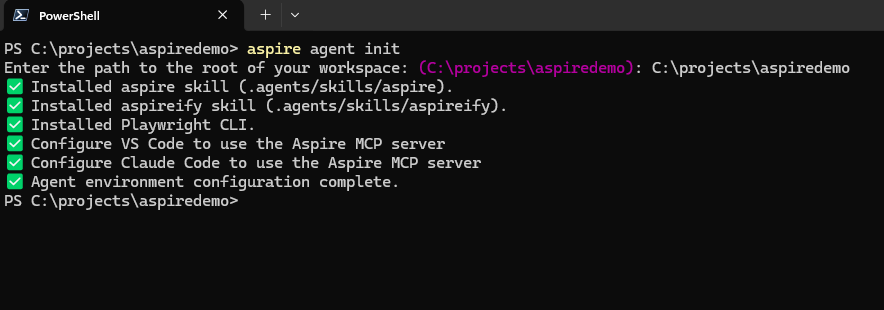
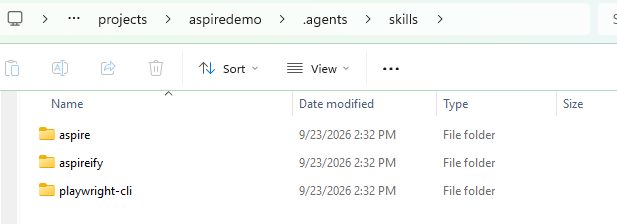
If you’re setting this up in a script or a dev container, there’s a non-interactive form:
aspire agent init --non-interactive --skills all --skill-locations standard
And if your team really does split between, say, Copilot and Claude Code, you can pass both locations:
aspire agent init --non-interactive --skills all --skill-locations standard,claudecode
If you have an AGENTS.md from an earlier version
Earlier versions of Aspire set up agent guidance in an AGENTS.md file. If you’ve got one of those lying around, the skill files replace it. Run aspire agent init, pick the workflow skills you want, and you’ll get files like .agents/skills/aspire/SKILL.md and .agents/skills/aspire-orchestration/SKILL.md. Once you’ve looked those over, delete the old AGENTS.md.
The skill files are also yours to change. They’re just Markdown. If your project has its own conventions for how the AppHost gets wired, that’s exactly where they belong.
Other ways to install
aspire agent init is the recommended route, but the same bundle is available through the plugin systems of several agents. In Claude Code, for example:
/plugin marketplace add microsoft/aspire-skills
/plugin install aspire@aspire-skills
There are equivalent paths for GitHub Copilot CLI, Codex, and APM, plus npx skills add microsoft/aspire-skills for anything that uses skills.sh-managed locations. The Aspire skills docs cover each one.
The companion tools
aspire agent init might also offer one or two companion skills that aren’t part of the Aspire bundle itself:
playwright-clifor driving a browser against a running frontend. More on that in a minute.dotnet-inspectfor looking up .NET package and type information.
The docs are specific about when not to use dotnet-inspect: if the agent only needs Aspire APIs, it should use aspire docs api instead, since that already covers the C# and TypeScript API reference from aspire.dev. Which brings us to one of the more quietly important things in this whole setup.
The MCP server, now optional
If you do want the MCP server, pick it during aspire agent init and it’ll write the right configuration file for your agent — .vscode/mcp.json, .mcp.json, Copilot’s mcp-config.json, or opencode.jsonc. For Claude Code, .mcp.json ends up looking like this:
{
  "mcpServers": {
    "aspire": {
      "command": "aspire",
      "args": ["agent", "mcp"]
    }
  }
}
That’s the entire configuration. No address, no key. Your agent spawns aspire agent mcp as a child process and talks to it over stdin and stdout.
What it can do
Those fifteen tools fall into a few groups:
- Telemetry —
list_resources,list_console_logs,list_structured_logs,list_traces, andlist_trace_structured_logs. This is the December toolset. - Control —
execute_resource_command, for starting, stopping, and restarting resources. - AppHost selection —
list_apphostsandselect_apphost, for when you’ve got more than one running. - Integrations and docs —
list_integrations,get_integration_docs,list_docs,search_docs, andget_doc. - Housekeeping —
doctor, plusrefresh_tools, which tells the client to re-fetch the tool list.
The one I’d point to is the docs group. If you’ve been following this series, you know how much Aspire has changed in the past four releases. Every one of those changes post-dates some AI model’s training data. An agent working from memory will cheerfully write ingress.WithRoute(...) because that’s what it saw last, when the method has since been renamed. An agent that can search the current aspire.dev docs before it writes code is an agent that stops confidently inventing last year’s API.
The security model
The STDIO change deserves a moment beyond “no more cert workarounds,” because it’s a genuine improvement.
In December, the MCP server was an HTTP endpoint on localhost, protected by an API key. Now it doesn’t listen on any network interface at all. It runs as a child process of your agent, and only that process can talk to it. There’s no network attack surface.
The docs are also clear about what it does not expose: source code, file system contents, environment variable values, secrets, and raw request and response payloads. What it does expose is resource metadata, logs, traces, the integration catalog, and the aspire.dev documentation. ExcludeFromMcp() still works to pull a resource and its telemetry out entirely:
builder.AddProject<Projects.ApiService>("apiservice")
       .ExcludeFromMcp();
That’s a much easier conversation with a security team than the one you’d have had in December.
A couple of practical notes
The server auto-detects running AppHosts within your working directory, and keeps watching for changes, so you don’t need to restart it when you start or stop an app. The catch is that your agent has to be started from the same workspace directory. If your agent can’t see your app, that’s the first thing to check.
And while the log limits went up a lot, they didn’t go away. Very long stack traces can still get truncated, and large collections of telemetry can still lose their oldest entries. Asking about something soon after it happens is still good advice, just less critical than it was.
Skills, MCP, or both?
So which do you want? The docs’ position is that skills can already query live runtime data through the CLI, so the MCP server is a preference rather than a requirement.
Be aware that the skills and MCP server do have a slightly different set of capabilities. For example, if we want to check the currently installed version of Aspire in our project, I tried the following command in Claude:
check the aspire version using aspire skills, then check using aspire mcp and compare results
And we got the following response:
The two methods don’t report the same thing. The CLI shows versions. The MCP server has no version tool at all, so it can only show environment health.
It also produced this handy chart for me:
| Aspire skill (CLI) | Aspire MCP | |
|---|---|---|
| Aspire CLI version | 13.3.0 (aspire --version) | Not available. No tool reports a version. |
| Update available | Yes, 13.5.4 | Not reported |
| AppHost SDK | Aspire.AppHost.Sdk/13.4.6, from BarretApi.AppHost.csproj | Not reported. No AppHost is running (list_apphosts is empty), so it can’t inspect one. |
| .NET SDK | 10.0.401 (x64) ✅ | 10.0.401 (x64) ✅ |
| Docker | v29.8.0, running ✅ | v29.8.0, running ✅ |
| Dev cert | Trusted, with a warning that an older version (v5) is present | Same warning, plus details: a v6 cert (expires 2027-01-20) and a v5 cert (expires 2026-12-28), both fully trusted |
What did that really tell me? Mostly that my CLI was out of date. It was still on 13.3 while the app was on 13.4.6, and since the MCP server runs from the CLI, it was a 13.3 MCP server too. So if the two ever disagree, check your CLI version first.
It also emphasizes the point that the skills, using the CLI, have access to your code files. So they can see all the things. The MCP server, on the other hand, can’t read your project files, and needs a running AppHost for anything app-specific. So, if your app isn’t running, the MCP server can’t do some of the things it’s capable of.
An update and a reconnect of my Aspire installs, and poof, they now agree:
| Check | Aspire skill (CLI) | Aspire MCP |
|---|---|---|
| CLI version | 13.5.4 (stable) | 13.5.4 (stable) |
| AppHost version | 13.5.4 | 13.5.4 |
| AppHost SDK in the project file | Aspire.AppHost.Sdk/13.5.4 | — |
| .NET SDK | 10.0.401 | 10.0.401 |
| Docker | v29.8.0, running | v29.8.0, running |
| Health checks | 7 passed, 2 warnings | 7 passed, 2 warnings |
What each one showed that the other didn’t:
- CLI only: a table of every Aspire CLI install. There are three:
~\.aspire\bin\aspire.exeis the one that runs.- The dotnet-tool launcher
~\.dotnet\tools\aspire.CMDis shadowed, meaning it’s on PATH but never runs because the first one comes before it. - The dotnet-tool install itself (also 13.5.4) isn’t on PATH.
- MCP only: the dev-certificate details, with thumbprints and expiry dates. There’s a v6 certificate and an older v5 certificate, and both are trusted.
- MCP only: a list of running AppHosts. None are running right now, so nothing was checked against a running app.
Warnings both reported:
- The v5 dev certificate is outdated. To clear it, run
aspire certs cleanand thenaspire certs trust. - The Aspire extension isn’t installed in VS Code.
So all in all, there are arguments for one vs the other depending on what you’re trying to accomplish and the situation, but it’s mostly a matter of preference. Both will cover most of the same info and tools for you.
The CLI was built for this
The reason skills can carry most of the load is that the Aspire CLI was reworked with agents in mind. A few commands matter specifically because an agent is the one running them:
aspire startruns the AppHost in the background. An agent doesn’t have a spare terminal to leaveaspire runblocking in.aspire waitblocks until resources are healthy. Without it, an agent will happily start querying an app that’s still coming up and draw conclusions from the errors.--non-interactiveand--format Jsonacross most commands, so an agent never gets stuck on a prompt and gets back something it can parse.--searchonaspire logsand theaspire otelcommands, with filtering applied before anything gets streamed back. I covered that in detail in the telemetry post, including why it matters for an agent’s context window.
The one I’d single out is aspire start --isolated. Isolated mode runs multiple instances of the same app side by side without port conflicts, and it’s intended for parallel git worktrees.
Think about what that enables. Two or three agents, each working a different branch of the same repo in its own worktree, each with its own running copy of the app to test against, none of them stepping on each other’s ports. That’s where agent-driven development is heading, and it’s a problem you don’t notice until you try it and experience the same things I did. Every agent after the first fails to start because of these port conflicts. --isolated helps resolve a lot of those problems.
Letting the agent see the browser
Server-side telemetry only covers half of a full-stack bug. The other half happens in the browser, and until recently your agent couldn’t see it.
The Aspire.Hosting.Browsers integration, added in 13.3, captures browser console logs, network requests, and screenshots from your frontend resources during development, and shows them in the dashboard alongside your server telemetry:
builder.AddViteApp("frontend")
       .WithBrowserLogs();
Note that it’s experimental, so you’ll need to suppress ASPIREBROWSERLOGS001 to use it.
Pair that with the playwright-cli companion skill and the agent has both halves. The docs describe the handoff: the agent uses Aspire to find the running app and the right frontend endpoint — which matters when you’ve got more than one web resource — and then hands that URL to Playwright to drive the browser. The browser logs flow back into the same telemetry the agent is already reading.
There’s also a line in the Aspire docs I’d tape to the monitor of anyone letting an agent fix bugs: passing resource health checks alone doesn’t prove that a failing request is fixed. Have the agent repeat the request and check the new trace. Green lights aren’t proof.
What the dashboard does now
The dashboard’s role in all of this has shifted too. The built-in Copilot chat is gone, removed in 13.5. In its place, 13.4 added an AI Agents dialog in the dashboard header, which gives you guidance on connecting a coding agent to your app. If you’re running a shared environment and don’t want it there, administrators can hide it with the Dashboard:UI:DisableAgentHelp setting.
That’s a telling change. In December the dashboard was the agent surface. The MCP server lived in it, and the chat lived in it. Now the dashboard’s job is to point you at the CLI and the skills. The agent works where your code lives, not in a browser tab.
Where that leaves us
In December, Aspire’s agent story was an MCP server in the dashboard with a button, an API key, and a certificate workaround. Ten months later, it’s a CLI designed to be driven by agents, a set of skills that teach them how to drive it, and an MCP server that’s there if you want it.
If you’ve read the Next Level series, that layering should look familiar. Instructions and skills teach the agent how to work. Tools give it the ability to act. MCP is one way of exposing tools, not the foundation everything sits on. It’s nice to see a tool vendor land on the same conclusion.